
RFSPD Access Through Zotero
RFSPD
Access without a Zotero Account
To access the SFE’s Regional Fire Science Publication Database (RFSPD) without creating a Zotero account, click the button below or go to the following URL: https://www.zotero.org/groups/2521811/regional_fire_science_publications/library
Access with a Zotero Account
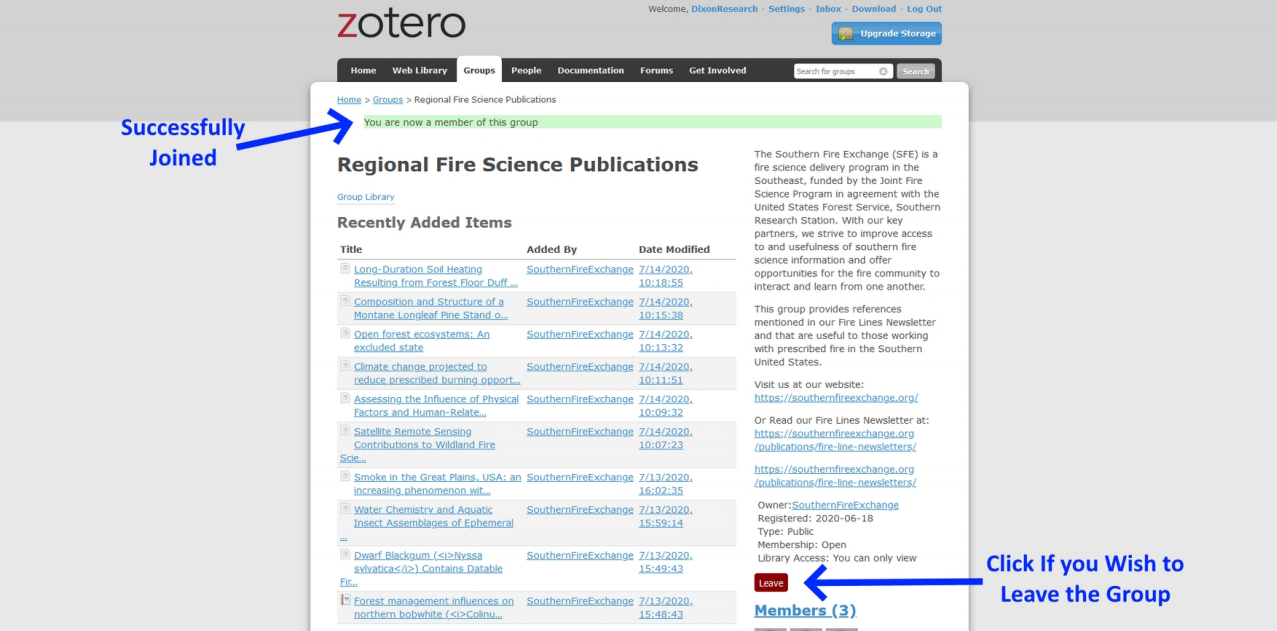
If you have a Zotero account or decide to make one, you can join the group and have the most up to date references available in your account which you can access through the web browser, Zotero Desktop Software, or mobile phone app. Here we will show you how to join the group. To begin, make sure you are logged into Zotero. Then navigate to the group home page (https://www.zotero.org/groups/2521811/regional_fire_science_publications). On the right side of the page above the “Members (#)” header you should see a red button that says, “Join.” Click it.

Upon clicking “Join,” you should see your screen change to include a green notification across the top and new information in on the right. This information includes information on the group and another red button you can use if you ever decide to leave the group.
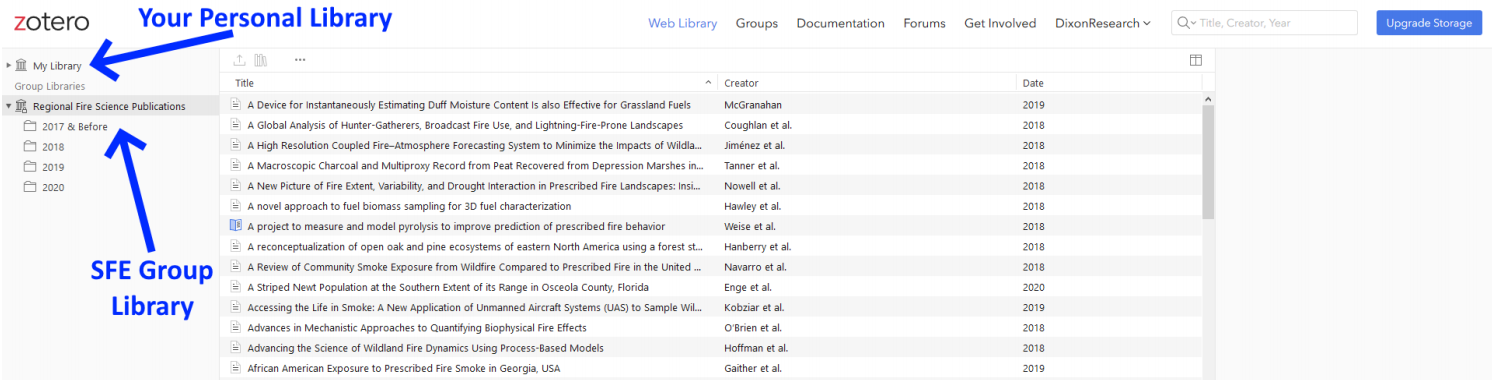
When clicking on and entering the group library as a member you will notice a few differences. The first is that you have additional library(s). To move between them you can click on them in the Library Hierarchy area. The selected library/collection will turn blue or gray.
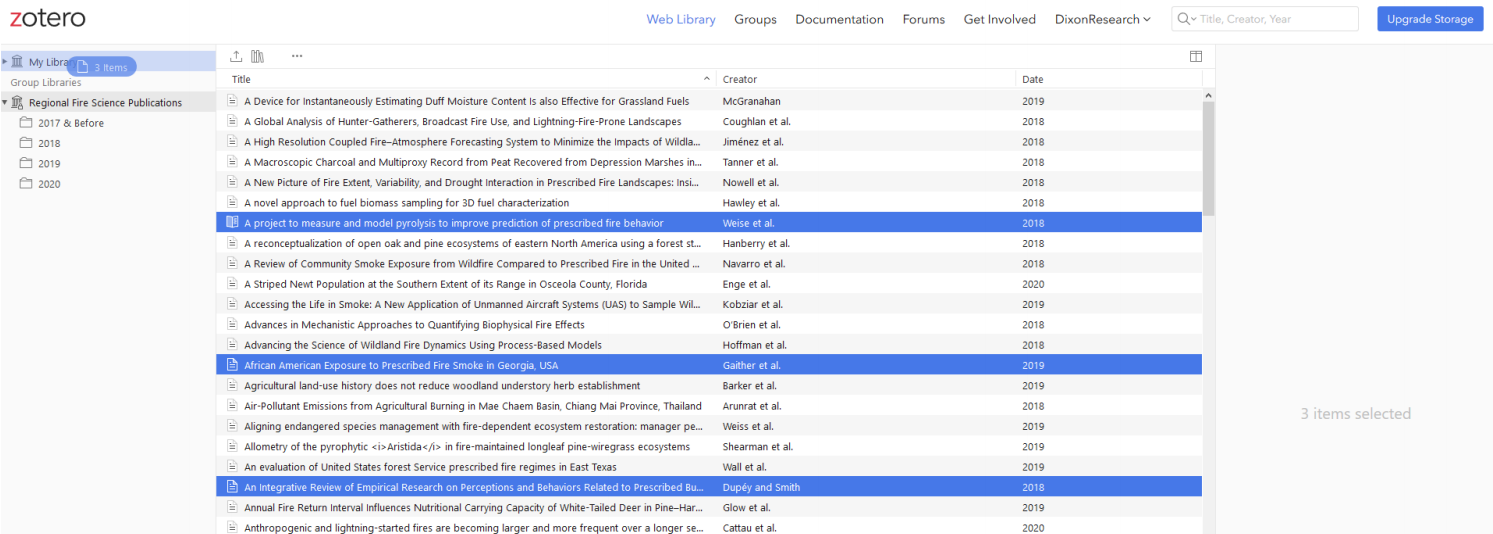
As you move around, you will notice that you can only view references within the Regional Fire Science Publications group. Admin Group privileges are required to make changes to group references within the group. If admin privileges are required, contact SFE staff. If you want to edit references and/or add them to your own library/collection you can select the references and drag them to your desired location within your library. These will then appear in your library and be editable there for your personal use.
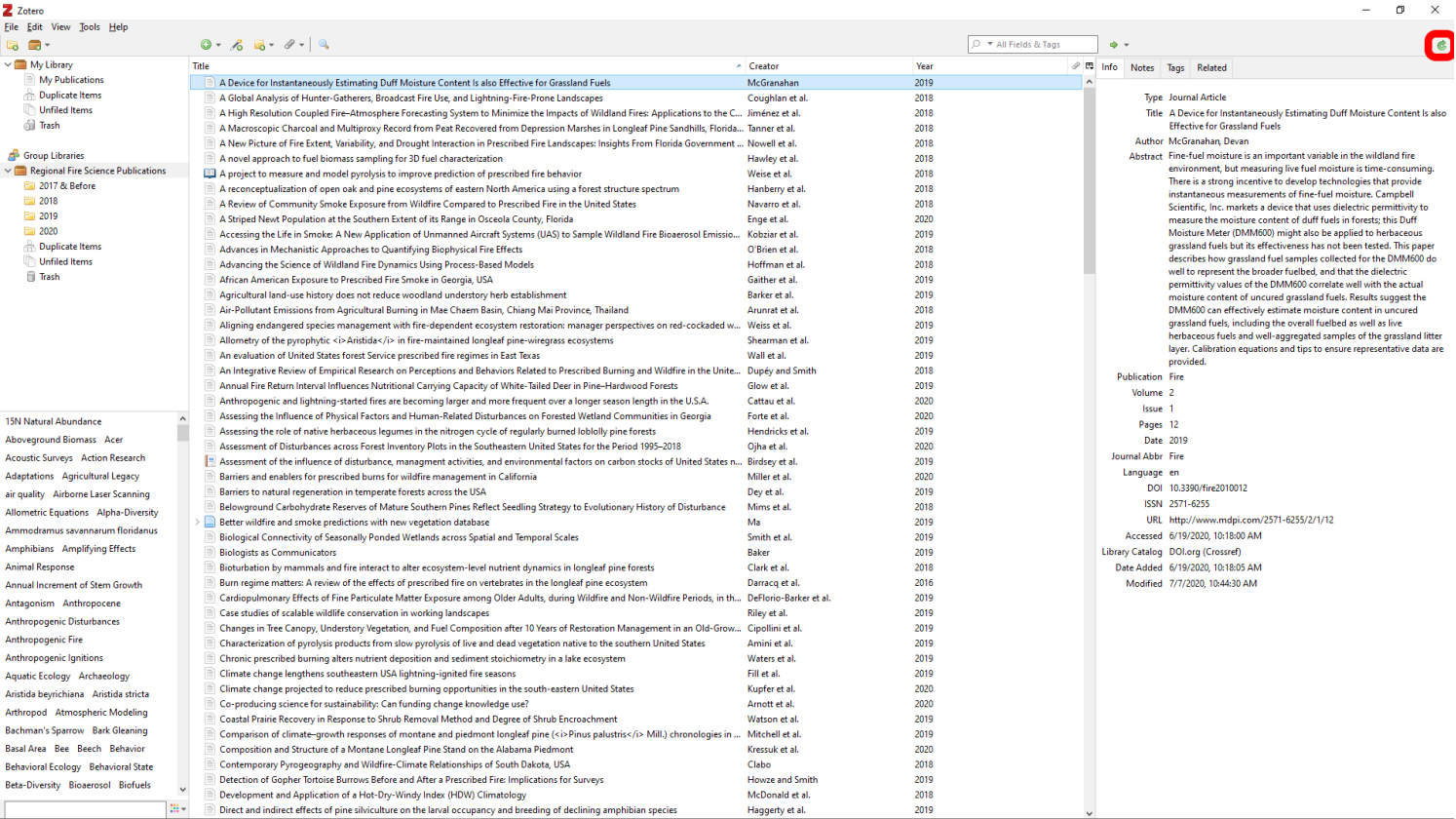
The group will always display the most up to date changes made and can work on Zotero Desktop too. Zotero Desktop can be freely installed on Windows, Mac, and Linux operating systems and allows you to not only access your personal and group reference databases but to easily add those references as formatted citations and bibliographies in several word processors. The Desktop software can be downloaded from Zotero’s site at https://www.zotero.org/download/. If installed and opened you should see a similar layout to the web version with your personal library and group(s). While the default setting for Zotero Desktop is to “automatically sync”, you can click the green sync button in the top right of the desktop version to ensure everything is up to date.
Navigating the RFSPD in Zotero
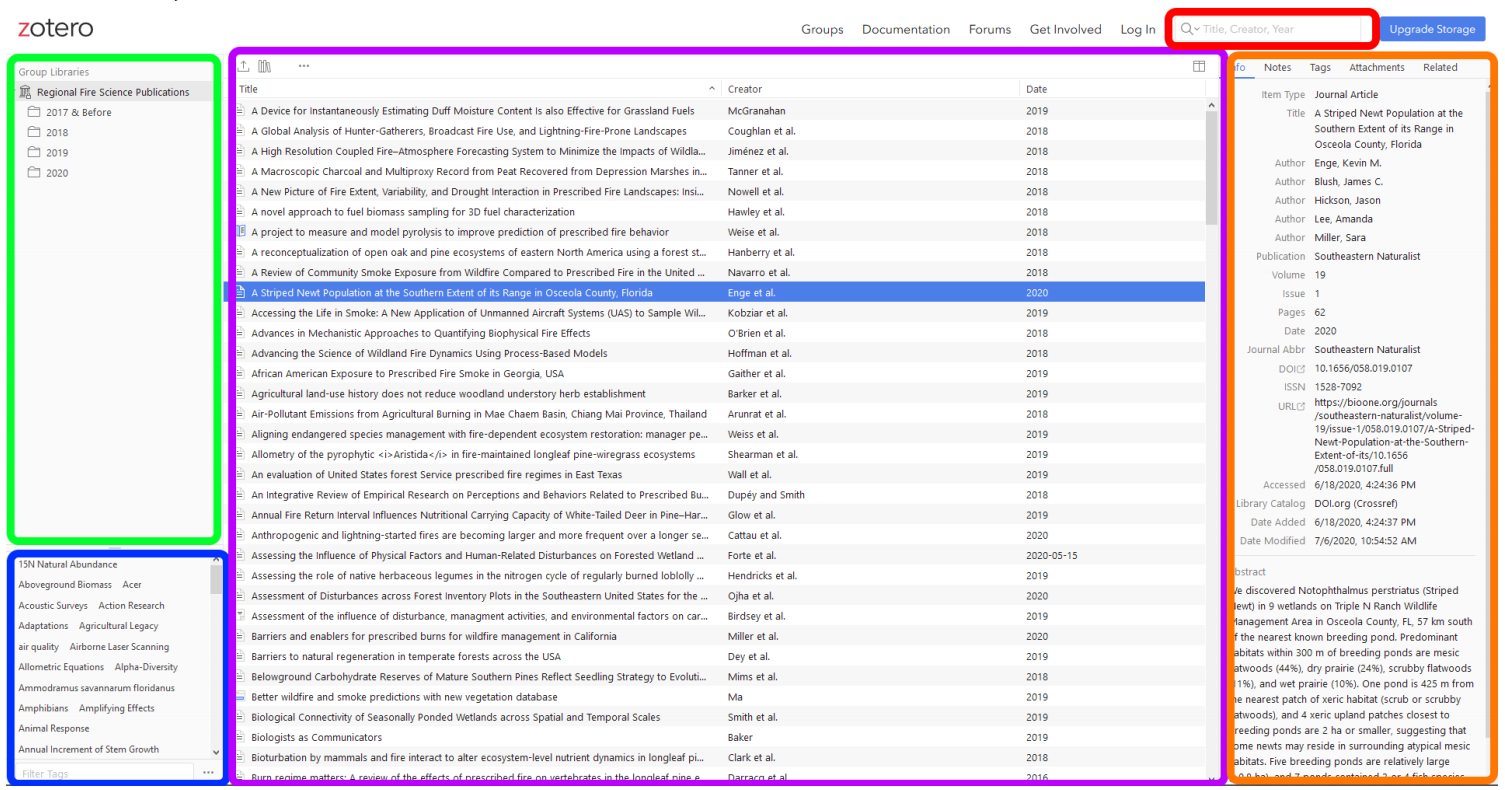
Library hierarchy can be found in the top left and shows any available libraries and their collections. If logged in, you should see “My Library” and other groups you have joined, otherwise it should look like below. Within the library you can have collections (i.e. sub-grouping of references). To make it easier to find the most recent research, we collections based upon publication year. By clicking on the collections/libraries you can see what references are available.
References available in a collection/library are viewed in the central window. You can select a single reference by clicking on it and seeing its details in the Reference Details area. To select multiple references you can hold down CTL while clicking on the references you want. If they are all in a row you could click the first, hold SHIFT, and click on the last to select all in between. Finally, you can select all of the references by clicking in the reference area and pressing CLT + A. In the top right, the column button will allow you to choose which columns to include in the reference area (e.g. publication title, item type, date added, etc.). In the top left there are 3 more buttons. From the left, the first button , allows you to export selected references in several formats to add to your own reference manager. The middle button allows you to copy and paste a formatted bibliography of selected references. You can even select the citation style you wish to use. The right button allows you to download the code to “subscribe to feed.”
Reference Details can be found on the right side. It contains information about the reference including authors, journal, abstract, pages, volume, etc. If a DOI or URL are available you can click on the labels, which act as a link, to take you to the publication page to access the article (i.e. some are behind paywalls). There are also tabs at the top of this area which allow you to view any notes, tags, attachments or related material associated with the reference.
Tags/Keywords can help narrow available references to what you are looking for. You can use the “Filter Tags” searchbar to find a tag/keyword and then click on it to only view references containing that tag/keyword. Selected tags/keywords turn gray. Multiple tags/keywords can be selected and you can turn them off by clicking on the tag/keyword. To deselect all tags/keywords, click the “···” button in the bottom right of the area and click “Deselect All.”
It is also worth noting the searchbar in the top right which allows you to search the references by terms you provide. Notice the dropdown arrow that allows you to choose between only searching the Title, Creator and Year, or searching the Full-Text Content.